
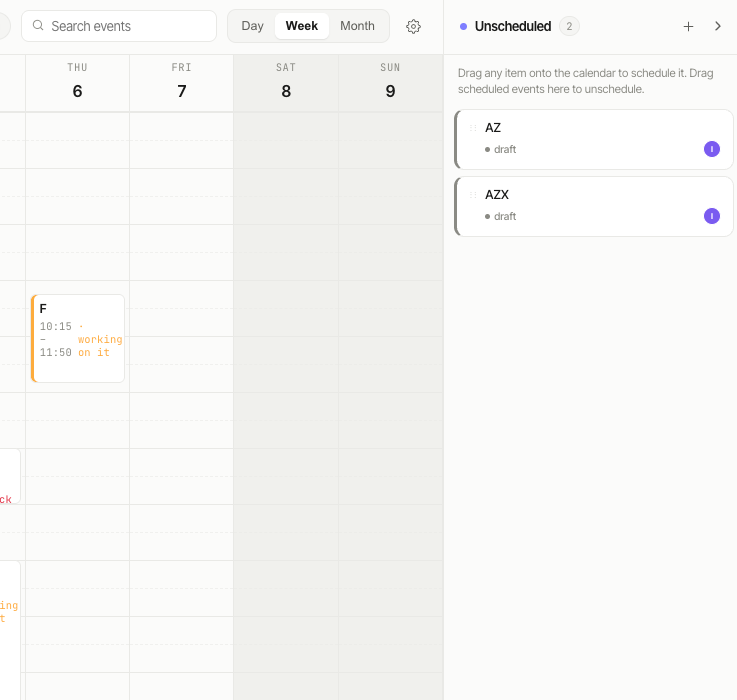
A calendar that writes back to your board
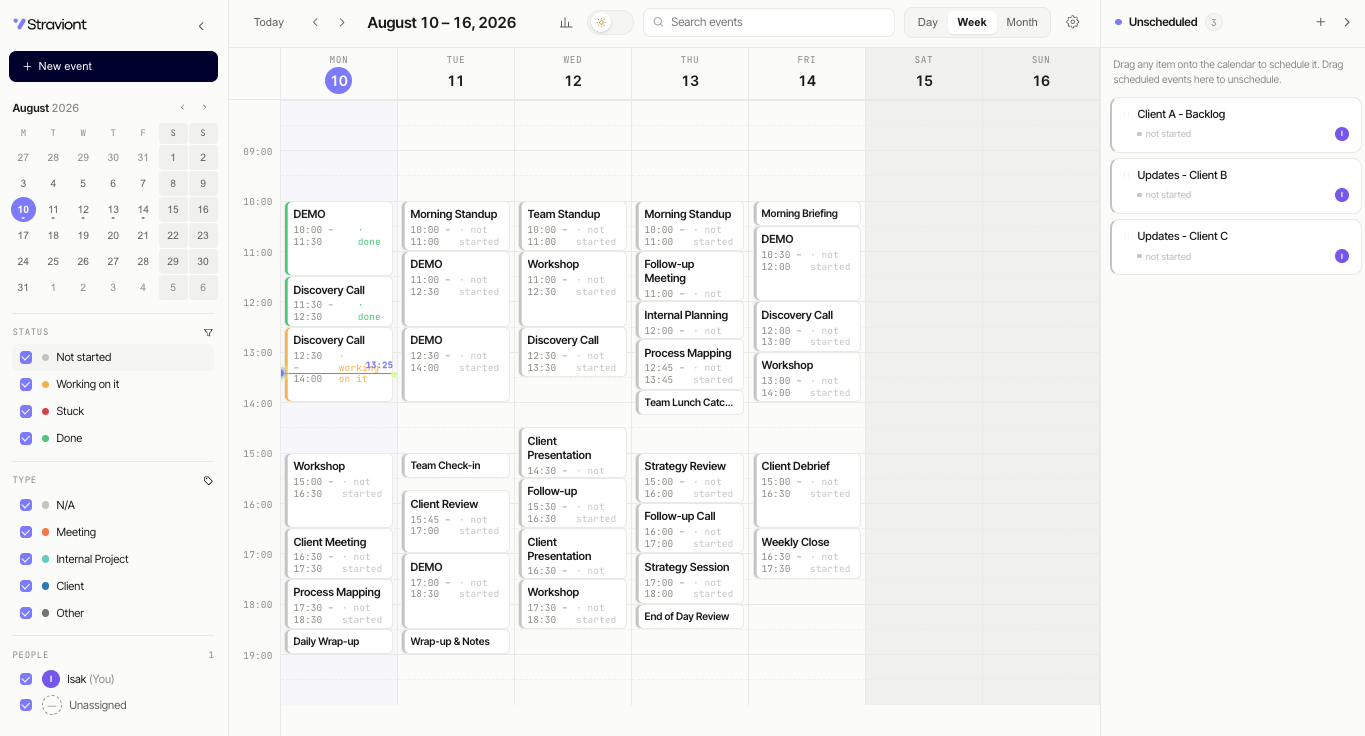
Super Calendar is a board view. It reads your date, status, people and type columns and draws them as events. Move an event and the board updates — there is no second source of truth to keep in sync.
Drag to schedule
Pull an item from the Unscheduled panel onto a slot. The mapped date columns are written immediately. Drag the bottom edge to change duration.
Nothing gets lost
Items without a date are not invisible. They sit in a counted panel next to the grid until someone places them.
Filters from your columns
Status, type and people filters follow the mapping you set. Day, week and month ranges, search by event name.
Running in four steps
One admin maps the board once. Everyone else opens the view and starts scheduling.
Read the full setup guide →Search for Super Calendar and install it to your account.
Add view → Super Calendar. The welcome screen opens inside the board.
Start date, end date, people and status are required. Type and notes are optional.
The board updates as you schedule. No export, no sync job.